Your first template
A template decides how a page looks. We’ll go through the Minimal template line by line and write our own, with a header, a title and the studio’s calm colors.
What a template is
In the manager, a page is data: a title, an address, text. A template is the frame that data goes into. It decides where the title sits, what color it is, what goes in the header and what goes in the footer. You can put one frame on as many pages as you like.
Eile templates are written in Svelte. Svelte is ordinary HTML where you can insert data in curly braces. You don’t need to study it separately: we’ll cover everything you need as we go.
The Minimal template
Above the page tree on the left there is an Elements tab. Open it: it lists templates, components, plugins and page fields. Click the Minimal template.
<script>
  let { page, site } = $props();
</script>

<svelte:head>
  <title>{page.longTitle || page.title} — {site.name}</title>
</svelte:head>

{@html page.content}
Let’s take it apart.
<script>…</script>: the service part, where data is prepared. The linelet { page, site } = $props();says “the template receives the pagepageand the sitesite”. Every template has it.<svelte:head>: what goes into the document head. The<title>tag sets the text on the browser tab.{page.title}: curly braces mean “insert the value here”.page.titleis the page title,site.nameis the site name.page.longTitle || page.title: “the long title, and if there isn’t one, the regular title”. Read the two bars||as “or”.{@html page.content}: the page text you write in the manager.
Three Svelte techniques
Everything we need in this cookbook rests on three techniques. You’ve already seen the first one: an expression in curly braces.
<p>The site is called {site.name}</p>The second shows a piece only if a condition holds.
{#if page.introText}
  <p class="intro">{page.introText}</p>
{/if}
The summary appears only if you filled it in. No empty paragraph will show up on the page.
The third repeats a piece for every item in a list.
<ul>
  {#each ['espresso', 'cappuccino', 'filter coffee'] as drink}
    <li>{drink}</li>
  {/each}
</ul>
You get a list of three items. Inside the {#each} block, the word drink takes each value in turn.
Your own Base template
- On the Elements tab, click + next to the word “Templates”.
- Type the name
Base. Element names use Latin letters and start with a capital letter. - Click Create. An editor opens with a starter template: delete it and paste the code below.
- Save with Save or Ctrl+S.
<script>
  import Content from '$core/Content';

  let { page, site } = $props();
</script>

<svelte:head>
  <title>{page.longTitle || page.title} — {site.name}</title>
</svelte:head>

<header class="top">
  <a class="logo" href="/">{site.name}</a>
</header>

<main>
  <h1>{page.longTitle || page.title}</h1>
  <Content of={page} />
</main>

<footer class="bottom">
  <p>{site.name} · kitchens made to order</p>
</footer>

<style>
  :global(body) {
    margin: 0;
    background: #f1efeb;
    color: #1f1e1c;
    font: 18px/1.6 system-ui, sans-serif;
  }

  .top,
  main,
  .bottom {
    max-width: 48rem;
    margin: 0 auto;
    padding: 1.5rem;
  }

  .logo {
    color: inherit;
    font-size: 1.25rem;
    font-weight: 800;
    letter-spacing: 0.12em;
    text-transform: uppercase;
    text-decoration: none;
  }

  h1 {
    font-size: 2.75rem;
    line-height: 1.05;
    letter-spacing: -0.02em;
  }

  .bottom {
    color: #6b6862;
    font-size: 0.9rem;
  }
</style>
Here’s what is new compared to Minimal:
import Content from '$core/Content';: brings in the built-in Content component. It outputs the page text and turns links to other pages, inserted components and forms into ready HTML. That’s why from now on we write<Content of={page} />instead of{@html page.content}.<header>,<main>,<footer>: the header, the main part and the footer. These are ordinary HTML tags.<style>: styles, meaning colors, fonts and spacing. A template’s styles apply only to its own markup.:global(body)is there to set the background for the whole page.
Put the template on the pages
The template exists, but the pages still use Minimal. Let’s switch them. The fastest way is the overview: open Pages in the header and pick Base in the template column for each page. The value is saved as soon as you leave the cell.
The other way is to open a page, choose the template in the Place on the site block on the right, then save.
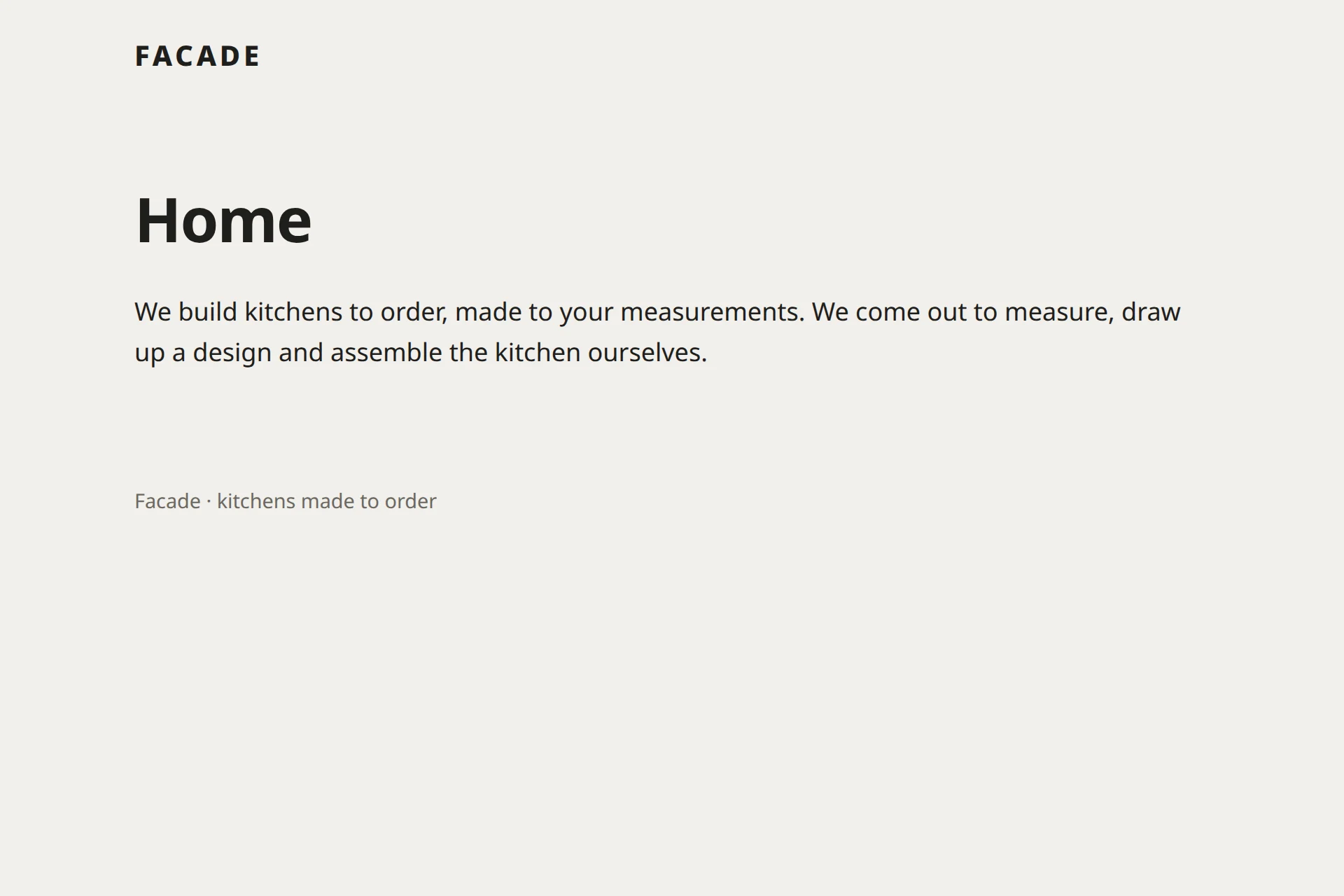
A new page gets its parent’s template, or at the top level, its neighbors’ template. Since all pages now use Base, new ones will too.
A mistake in a template
Let’s make a mistake on purpose, so it won’t scare you later. In the Base template, delete one closing curly brace, for example in {site.name}, and save.
The manager won’t save the template and will show the line with the error. Meanwhile the site keeps running on the previous version, and visitors won’t notice a thing. Put the brace back and save again.