Installing and the first run
We’ll install Eile with one command, start an empty site and sign in to the manager. It takes about ten minutes.
Install the program
Open a terminal, paste this whole command and press Enter:
$ curl -fsSL https://github.com/a-sharapov/eile/releases/latest/download/install.sh | bashThe command downloads the installer and runs it. The installer works out which system you have, downloads the matching build of Eile, checks its checksum (this confirms the file arrived whole and nobody swapped it) and puts the cms program where the terminal can find it.
Let’s check that everything is in place:
$ cms version
Eile 0.1.0-alpha.9.1
Your version number may be newer. That’s fine.
A folder for the site
The site needs its own folder. Let’s create it and go into it. The mkdir command creates a folder, and cd moves into it:
$ mkdir facade
$ cd facade
Run all the following commands from this folder. If you close the terminal, type cd facade again in the new window.
Start the site
$ cmsThe terminal answers with something like this:
  ●─┬─●  Eile 0.1.0-alpha.9.1
    ├─◐  site and manager in one file
    └─○  pages, templates, media

  Site       http://localhost:8080/
  Manager    http://localhost:8080/manager
  Database   site.db
  Pages      1 page · ● published 1

  ▸ New database: a welcome page and a blank template.
    Ready-made sites (blog, portfolio, shop): cms new

  ▸ No users yet. Create the administrator at:
    http://localhost:8080/manager/setup?token=…
Let’s go through what it says.
- Site: the address where the site opens in a browser.
localhostmeans “this computer”, and8080is the port: the number of the door the program uses to let visitors in. - Manager: the admin area where you’ll run the site.
- Database: the
site.dbfile in your folder. It holds the whole site: pages, templates, images and users. Copy this file, and you have a copy of the entire site. - The administrator link: you use it to create the first user. It works once.
The site is available while the terminal window is open and the program is running. To stop it, press Ctrl+C in the terminal. To start it again, type cms in the same folder.
Look at the site
Open http://localhost:8080 in your browser. You’ll see a page called “Welcome”. It is rendered by the Minimal template, which holds nothing except the page text. Every new Eile site starts like this.
Create an administrator
Copy the long link from the terminal that starts with http://localhost:8080/manager/setup and open it in your browser. The First administrator form appears.
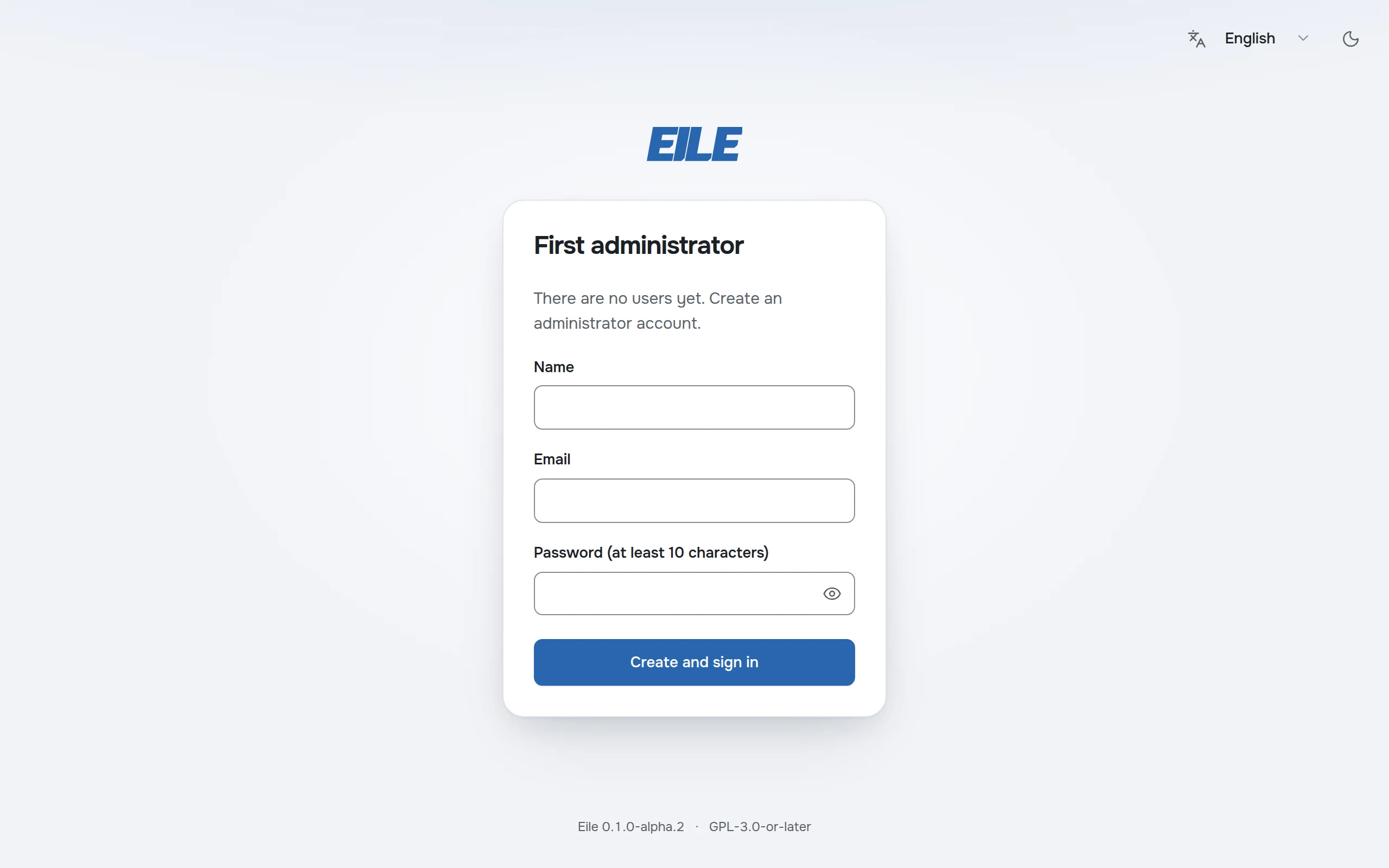
- Enter a name: other manager users will see it.
- Enter your email. It becomes your login.
- Choose a password of at least 10 characters and write it down somewhere safe.
- Click Create and sign in.
Done, you’re in the manager. Next time, open it at http://localhost:8080/manager and sign in with your email and password.
Look around the manager
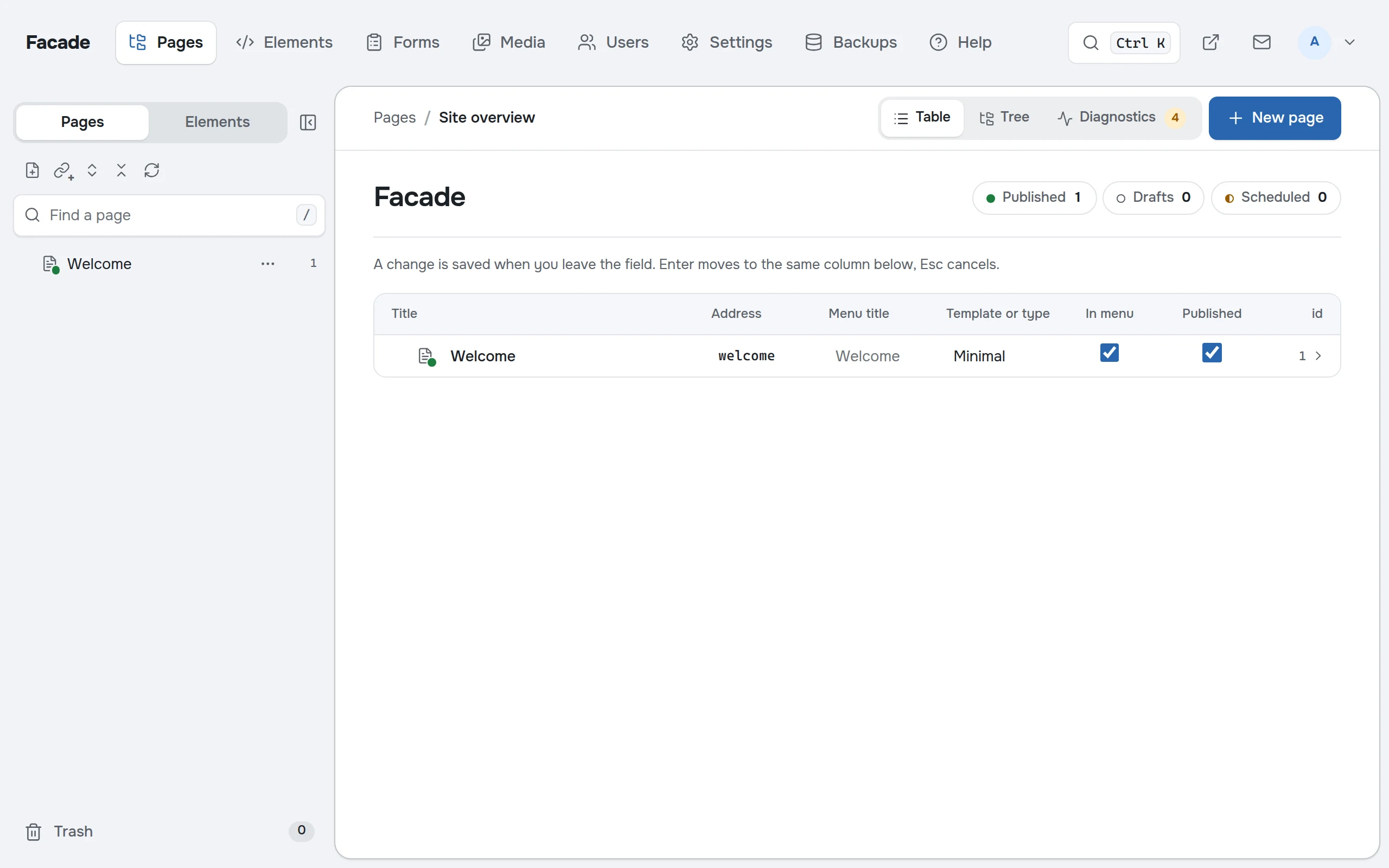
- The header at the top holds the section icons. Hover over an icon to see its name: Pages, Elements, Forms, Media, Settings and others. On the right, the button with your initial opens the account menu.
- The page tree on the left: the whole site and how its pages nest. The number to the right of a page name is the page’s number, its id.
- The canvas on the right: whatever you have open. Right after you sign in, it shows an overview of all pages as a table.
The question mark icon opens Help: it briefly describes everything the manager can do. Take a look when you have a minute.
Give the site a name
Right now the site is called Eile. Open Settings (the gear icon), type “Facade” in the name field on the Site tab, and save. The name appears in the browser tab title, and later in the site header too.